How to Export and import industrial camera settings

This guide explains how to export your camera's parameter settings into a text file and how to import them when needed. Exported data can serve as a backup, a record of different settings during testing, or a way to configure multiple cameras with the same parameters.

Why Import or Export Camera Settings?
The Galaxy Viewer software allows users to save the current camera settings as a
text file. This feature is useful in various situations, such as:
• Testing different camera setups and documenting configurations.
• Technical support assistance, providing an easy way to share settings.
• Further analysis in Excel by importing the text file.
• Backup purposes, ensuring quick restoration in case a camera needs to be replaced.
• Configuring multiple cameras (e.g., slave cameras) with the same settings.
How to Export Industrial Camera Settings
Exporting the camera’s parameter settings is straightforward:
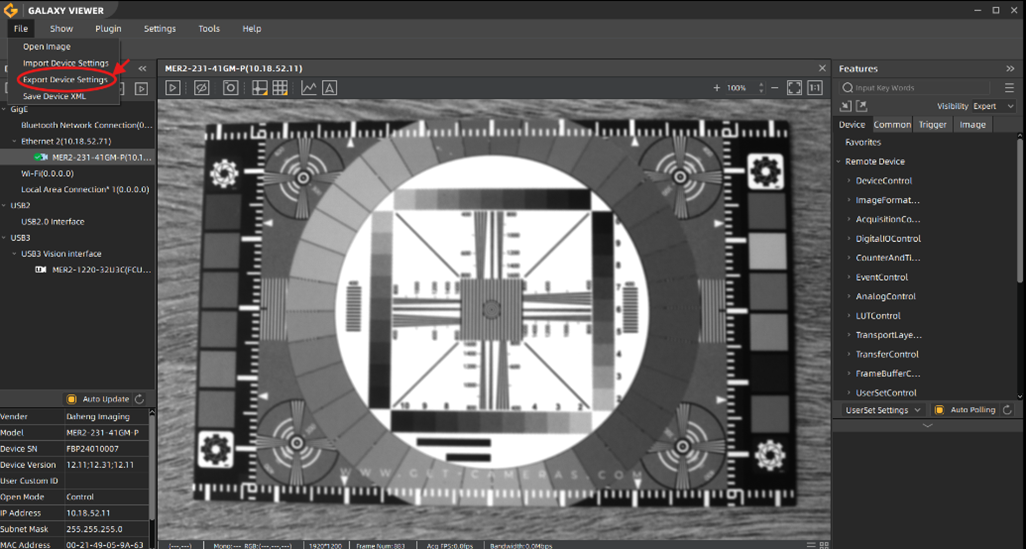
- Configure the camera in Galaxy Viewer as needed.
- Navigate to File → Export Device Settings.
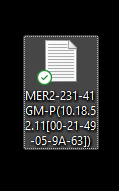
- A pop-up window will appear—enter a name for the file and select a save location.
Example of an Exported Camera Settings File
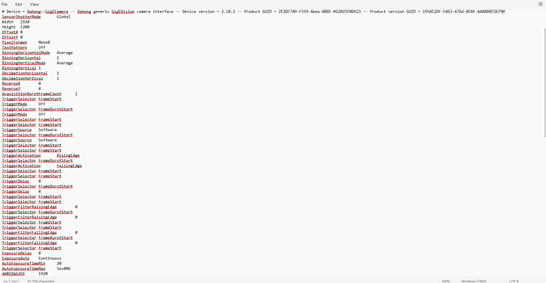
You can download an example settings file for a GigE camera. On the right side is a small screenshot showing part of the file structure.
How to Import Camera Settings
Importing settings follows the reverse process:
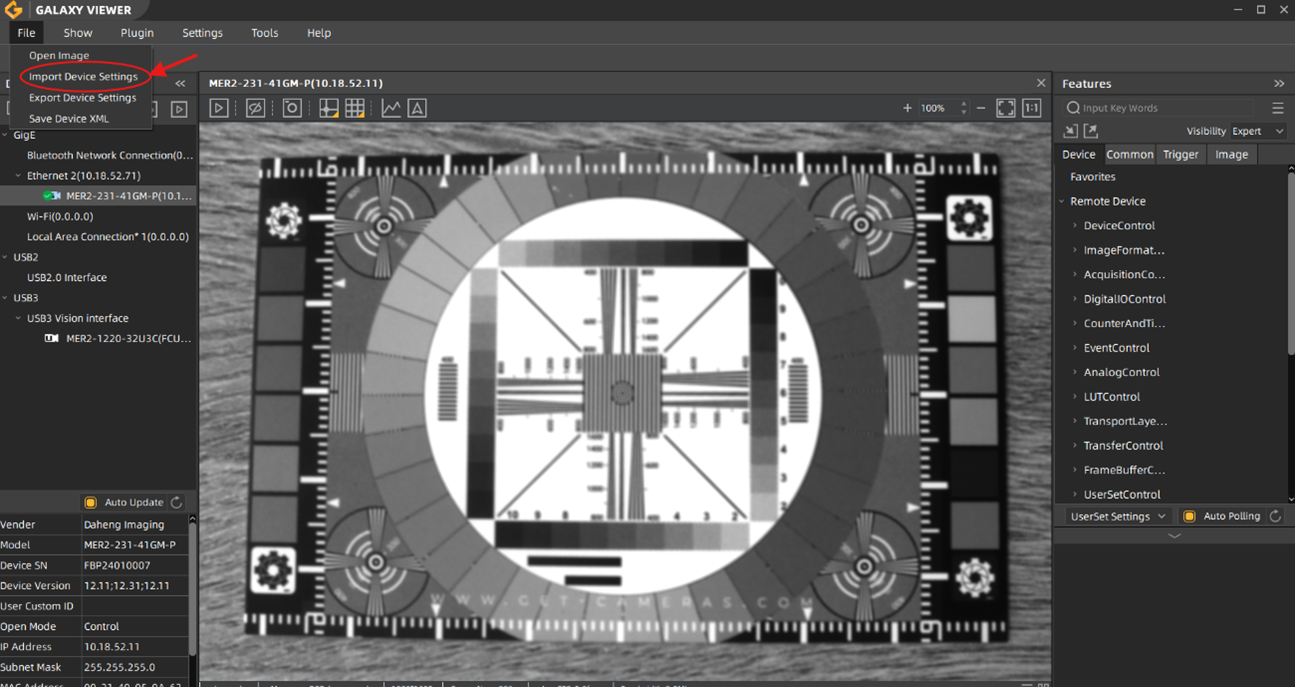
- Connect the camera to GalaxyViewer.
- Navigate to File → Import Device Settings.
- Select the previously saved settings file to apply the configuration.
Note:
- Only the current settings of the camera will be modified; the UserSet remains unchanged.
- The import function only works for the same camera model.
By utilizing the import/export functionality, you can efficiently manage multiple cameras and maintain consistency across different setups.